

Use this guide to compare Cyber Monday smart home deals, confirm device compatibility, and choose products you can set up and use. It is for first-time buyers and anyone adding devices to an existing home. Set aside 1-2 hours to plan, compare prices, and place an order.

Get the little things that make your day delivered free with Prime
- Fast, free delivery on millions of items
- Prime Video, Amazon Music and more included
- Member-only deals all year
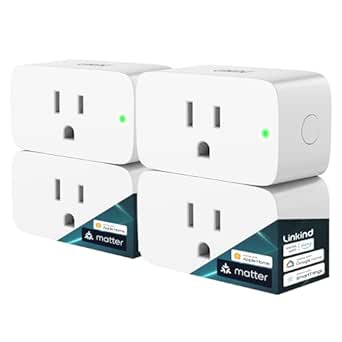
Linkind Matter Smart Plug, 4 Pack
- ✔ Connectivity: Matter, 2.4 GHz Wi-Fi
- ✔ Network requirement: IPv6
- ✔ Power capacity: 15 A, 1800 W

Amazon Echo Show 5 Smart Display (Newest Model), Charcoal
- ✔ Display: 5.5-inch touchscreen
- ✔ Camera: 2 MP with built-in shutter
- ✔ Speaker: 1.75-inch full-range

Kasa Smart Plug Ultra Mini 15A, EP10P2, 2-Pack
- ✔ Pack size: 2 plugs
- ✔ Maximum load: 15 A, 1800 W
- ✔ Operating voltage: 120 V AC
Difficulty: Beginner | Time: 1-2 hours
What You’ll Need
Tools & Materials:
- Phone or computer with internet access
- Notes app or paper for a shopping list
- Your Wi-Fi router details and smart home platform information
Knowledge:
- Basic familiarity with your home Wi-Fi and mobile apps
- The name of any smart home platform or voice assistant you already use
Set a total spending limit before browsing. Include possible hubs, subscriptions, batteries, or installation materials in that limit. Check retailer return terms and product availability, since Cyber Monday deals and stock can change quickly.
Linkind Matter Smart Plug, 4 Pack
When we want several outlets automated and expect to use more than one smart home platform, Linkind makes the strongest case in this group. Its four-plug package and Matter compatibility cover more ground than Kasa’s two-plug Wi-Fi pack, and the listed support spans Apple Home, Alexa, Google Home, SmartThings, and AiDot. Schedules, timers, voice commands, and remote control handle the practical routines, such as switching lamps on at set times or turning an appliance off remotely.The extra flexibility asks more of our setup. Linkind requires 2.4 GHz Wi-Fi and IPv6, and most supported platforms need a compatible Matter hub or controller. AiDot can be used without one, but buyers who expect a plug-and-play experience may find Kasa simpler. Local LAN control after setup can keep control available during an internet outage, a useful distinction from relying entirely on cloud access. Each plug supports up to 15 A and 1800 W, with short-circuit and overload protection. We should still check appliance requirements before connecting anything.This is the most adaptable pick for a home with a compatible hub and multiple rooms to automate. It is less compelling if we only need one or two outlets, or if we do not want to verify network settings before setup. Choose Linkind for breadth and quantity; choose Kasa when fewer platform choices and no hub matter more.
Pros:
- Four plugs can cover more outlets than the Kasa two-pack.
- Matter compatibility spans several major smart home platforms.
- LAN control is available after setup when the internet is offline.
- Schedules, timers, remote control, and voice commands support everyday automation.
Cons:
- Requires 2.4 GHz Wi-Fi and IPv6.
- Most supported platforms require a compatible Matter hub or controller.
- The broader setup may be unnecessary for buyers who want a basic hub-free plug.
Best for: Households with a compatible Matter controller that want to automate several outlets across supported platforms.
Not ideal for: Buyers without IPv6 support, a compatible hub for their preferred platform, or a need for only one or two plugs.
Bottom line: For a multi-platform home with the right network and controller, Linkind is the most versatile way to automate several outlets in this lineup.
“For a multi-platform home with the right network and controller, Linkind is the most versatile way to automate several outlets in this lineup.”
Amazon Echo Show 5 Smart Display (Newest Model), Charcoal
The Echo Show 5 serves a different purpose from the two plug packs: it gives us a small screen and voice interface for checking compatible smart home devices, viewing camera feeds, making video calls, and displaying photos. A 5.5-inch touchscreen takes up little space on a bedside table or kitchen counter, while the built-in speaker can handle music and shows. Compared with Linkind and Kasa, it offers a more visible control point, though it cannot automate as many separate outlets on its own.Its strongest fit is a household already using Alexa. The camera adds a way to make calls and view compatible cameras, while a physical shutter and microphone/camera off button offer straightforward privacy controls. The camera’s 2 MP resolution and small screen signal the scale of the experience: it is convenient for quick checks and calls, rather than a substitute for a larger display. Alexa is the organizing center, so this pick is less flexible than Linkind for a mixed-platform setup. Kasa, by contrast, focuses on two outlet controls and does not add a screen, camera, or speaker.Choose the Show 5 when our Cyber Monday goal is to add a compact Alexa display as well as smart home access. Skip it if we only want inexpensive outlet automation, prefer a different assistant, or expect a spacious screen for media. Some skills and services may require subscriptions or other fees, and it does not support ad-hoc or peer-to-peer Wi-Fi networks.
Pros:
- Combines a touchscreen, speaker, camera, and compatible smart home controls.
- Camera shutter and microphone/camera off button provide physical privacy controls.
- Supports video calls, compatible camera viewing, and photo slideshows.
- Compact footprint suits counters and bedside tables.
Cons:
- Smart home experience is centered on Alexa rather than broad Matter platform support.
- The 5.5-inch screen is limited for longer viewing sessions.
- Some skills and services may require subscriptions or additional fees.
Best for: Alexa households wanting a compact bedside or countertop display for calls, compatible camera viewing, and smart home controls.
Not ideal for: Shoppers focused only on outlet automation, users committed to another assistant ecosystem, or anyone wanting a larger screen.
Bottom line: The Echo Show 5 is the strongest pick when a compact Alexa screen matters more than adding several smart outlets.
“The Echo Show 5 is the strongest pick when a compact Alexa screen matters more than adding several smart outlets.”
Kasa Smart Plug Ultra Mini 15A, EP10P2, 2-Pack
Kasa is the easy recommendation when we want to automate a couple of appliances without setting up a hub. The two compact Wi-Fi plugs work with Alexa and Google Assistant, along with the Kasa or Tapo app, and support schedules, timers, and Away Mode. That makes them more direct than Linkind for buyers who value a simple route to basic control over Matter’s broader platform reach. They also leave the second wall outlet available, a practical benefit when receptacles are close together.The limits are equally plain. Kasa requires a 2.4 GHz Wi-Fi connection and does not list Apple Home or SmartThings compatibility, so it is a narrower fit than Linkind for a mixed ecosystem. It does not need a hub, which is its key advantage over Linkind’s typical setup, but shoppers seeking a screen and voice interface in one device should consider the Echo Show 5 instead. Each plug supports up to 15 A and 1800 W at 120 V AC; the listed UL certification adds a defined safety credential. We should match connected appliances to the plug’s capacity.This pick suits renters or first-time smart home buyers who want a straightforward way to schedule a lamp or manage a small appliance. It is not the best route if we need four outlets, local LAN control during internet interruptions, or support for a wider range of platforms. Kasa keeps setup and controls simple, while Linkind offers more ecosystem reach and the Echo adds an entirely different kind of device.
Pros:
- No hub is required.
- Compact bodies leave the second wall outlet available.
- Schedules, timers, and Away Mode support common routines.
- Works with Alexa, Google Assistant, and Kasa or Tapo apps.
Cons:
- Requires a 2.4 GHz Wi-Fi connection.
- Listed voice assistant support is limited to Alexa and Google Assistant.
- The two-pack covers fewer outlets than Linkind’s four-pack.
Best for: New smart home buyers who want app and voice control for two appliances without adding a hub.
Not ideal for: Households using Apple Home or SmartThings as their main platform, or buyers who need four plugs or local outage control.
Bottom line: Kasa is the simplest choice for hub-free control of two outlets when 2.4 GHz Wi-Fi and its supported platforms suit our home.
“Kasa is the simplest choice for hub-free control of two outlets when 2.4 GHz Wi-Fi and its supported platforms suit our home.”
As an Amazon Associate we earn from qualifying purchases.
Before You Start
Write down the devices you already own, the phone or voice assistant you use, and your Wi-Fi network type if you know it. Some products require a separate hub, a particular Wi-Fi band, a subscription, or a compatible phone. Confirm these details on the manufacturer’s product page before relying on a discount. Avoid buying a device based only on a low advertised price.
Step-by-Step Instructions
Step 1: Choose a specific home task
Pick one problem you want a device to solve, such as controlling lamps remotely, seeing who is at the door, adjusting a thermostat, or automating lights at a set time. Write down where the device will go and who will use it. If this is your first smart home purchase, start with one room or one task so you can learn the setup before expanding.
Tip:For cameras, doorbells, and locks, think about privacy, power, and placement as well as convenience. A camera needs a suitable view and power source; a smart lock must fit your door and lock type.
Check: You can describe the device’s purpose and where it will be installed in one sentence.
Step 2: Set a complete budget
Choose a maximum amount for the whole purchase, then list any extra costs the device may require. Include a hub, optional cloud storage, a compatible bulb or switch, batteries, mounting hardware, or professional installation. Decide whether you are buying one device or a bundle, and keep a small allowance for tax or shipping.
Tip:Check whether advertised features require a paid plan. A camera’s basic live view may be free while video history requires a subscription.
Check: Your budget includes the likely cost of making the device usable, not just its sale price.
Step 3: Check platform and network compatibility
Identify the ecosystem you want to use, such as Apple Home, Google Home, Amazon Alexa, or a manufacturer’s own app. Read the device specifications for explicit support for that platform. Check requirements for Wi-Fi frequency, Bluetooth, a hub, phone operating system, and account registration. If you use Matter devices, verify that you have a compatible controller and that the product’s listed Matter features cover the controls you need.
Tip:Similar product names can refer to different generations with different requirements. Compare the exact model number and generation, not just the product family name.
Check: The product listing states that the exact model works with your platform and network setup.
Step 4: Compare the sale price with other offers
Search the exact model number at the retailer and manufacturer, then compare the Cyber Monday price with other current offers. Check whether the price is for a single device, a multipack, or a refurbished unit. Review shipping, taxes, return window, warranty, and whether the seller is authorized. Compare the full bundle cost if one option includes a hub or accessories you would otherwise buy separately.
Tip:Do not treat a crossed-out reference price as proof of savings. Compare the amount you would actually pay with recent prices or competing listings.
Check: You know the final checkout cost, seller, condition, and return terms for your preferred offer.
Step 5: Review privacy, security, and ongoing costs
Check what data the device collects, where recordings or usage history are stored, and which features need an account or subscription. Look for security update information, two-factor authentication, and controls for deleting data or disabling microphones and cameras. For devices that unlock doors or control heating, confirm what happens if the internet or power fails.
Tip:Use a unique password for the device account and enable two-factor authentication when the service offers it.
Check: You understand the device’s recurring fees, data handling, and basic failure behavior.
Step 6: Choose the best-fit offer and place the order
Select the offer that meets your task, compatibility, privacy, and budget requirements. Read the cart summary before paying: confirm the model, quantity, plug type or regional version, seller, shipping address, delivery estimate, and total. Save the receipt and product page or order details so you can refer to the return deadline and model number during setup.
Tip:For a multi-device bundle, check that every included item is useful and compatible. A bundle is not a saving if it adds equipment you will not use.
Check: Your order confirmation shows the intended model and quantity at a total within your spending limit.
Step 7: Prepare for setup when the device arrives
Before opening the package, check that the delivered model matches your order and inspect it for damage. Read the quick-start guide and confirm the app is available in your phone’s app store. Update your phone and router if needed, locate the installation area, and make sure you have required batteries, tools, or a nearby outlet. Follow the manufacturer’s setup sequence and use the official app.
Tip:Do not install a doorbell, switch, lock, or other mains-connected equipment if you are unsure how to work safely with its power supply. Use a qualified installer when the instructions call for one or the installation is outside your experience.
Check: The device powers on, connects to the intended app and platform, and performs the task you bought it for.
Common Mistakes to Avoid
- Buying a discounted device that does not work with the existing platform or Wi-Fi. — Check the exact model’s compatibility list and network requirements before ordering.
- Comparing only the headline price. — Include subscriptions, hubs, accessories, shipping, and taxes in the total cost.
- Ordering a bundle because it appears to offer a larger discount. — Confirm each included item is compatible and serves a planned use.
- Ignoring privacy and account security. — Review data settings, update support, account requirements, and two-factor authentication before purchase.
Troubleshooting
Problem: The device does not appear in the setup app.
Solution: Check that it has power, is in pairing mode, and that Bluetooth or location permissions are enabled if the app requests them. Confirm you installed the manufacturer’s official app and followed the model-specific pairing instructions.
Problem: The device cannot connect to Wi-Fi.
Solution: Compare the router’s active band and security settings with the device requirements. Move the device closer to the router during setup, re-enter the network password, and restart the device and router if the manufacturer recommends it.
Problem: The device connects to its app but not to the voice assistant or smart home platform.
Solution: Verify that the exact model supports the platform, update both apps, and follow the manufacturer’s account-linking steps. If the product needs a hub or controller, confirm it is online and on the same home network.
Problem: The sale item arrives damaged or differs from the listing.
Solution: Photograph the packaging and item, keep the order details, and contact the seller promptly using the listed return or support process. Do not install a damaged electrical device.
What Success Looks Like
Your purchase matches the intended task, works with your existing platform and network, and fits the full budget. After delivery, the device powers on, appears in its app, and performs its intended function. You can find the receipt, warranty details, return deadline, and any subscription terms.
Next Steps
After setup, install available firmware updates, set a unique account password, and enable two-factor authentication. Review privacy settings and test the device’s controls, schedules, and offline behavior. Keep the receipt and note the return deadline. Add more devices only after confirming that the first one works reliably and that each new purchase fills a specific need.
Frequently Asked Questions
Should I buy a hub with my first smart home device?
Only if the device requires one or the hub adds features you plan to use. Check the product requirements and whether an existing compatible speaker, display, or controller can act as the hub.
How can I tell if a Cyber Monday discount is good?
Compare the exact model number across reputable sellers and check the full checkout cost. Account for condition, shipping, return terms, included accessories, and subscriptions rather than relying on the displayed discount percentage.
Can I mix smart home brands?
Often, but each device must support the platform or standard you use, and some features may only work in the manufacturer’s app. Confirm the functions you need are available through your chosen platform.
Do smart home devices need a subscription?
Some basic controls work without a subscription, while cloud video history, advanced alerts, or other services may require payment. Check the feature and pricing details before ordering.
What should I do if a device does not work after setup?
Check power, app permissions, Wi-Fi requirements, and the model’s pairing instructions. If the device remains unreliable, contact the manufacturer’s support and use the retailer’s return process before the deadline.